



How to Check Your YouTube Channel’s Copyright Status
Keywords: YouTube copyright status, YouTube studio dashboard, check copyright strikes, Content ID claims, YouTube channel health, TrustNet Security, digital risk monitoring.
Introduction
Ignorance is not bliss when it comes to maintaining a YouTube channel. Many creators upload videos consistently without realizing they are accumulating copyright claims or are precariously close to receiving a devastating copyright strike. Keeping a close eye on your channel’s copyright status is fundamentally necessary for protecting your monetization and ensuring your channel isn’t suddenly terminated. Monitoring channel health is a routine process every digital content manager must master.
The Importance of Checking Your Status
Why bother checking if you haven’t received a massive warning email?
- Revenue Leakage: You might be losing thousands of dollars to Content ID claims where another entity is placing ads on your videos without your explicit knowledge.
- Strike Proximity: You need to know if you currently have an active copyright or community guidelines strike. One more mistake could lead to channel suspension.
- Geographical Blocking: Some claims block your video in specific countries. You need to know if your target demographic is actually able to see your marketing campaigns.
Step-by-Step Guide to Checking Your Copyright Status
YouTube has centralized all copyright and community guidelines information into the YouTube Studio dashboard. Here is how to perform a comprehensive channel health check.
Step 1: Access YouTube Studio
Log into your YouTube account and click on your profile icon in the top right corner. Select YouTube Studio from the dropdown menu. This is your command center.
Step 2: The Dashboard Overview
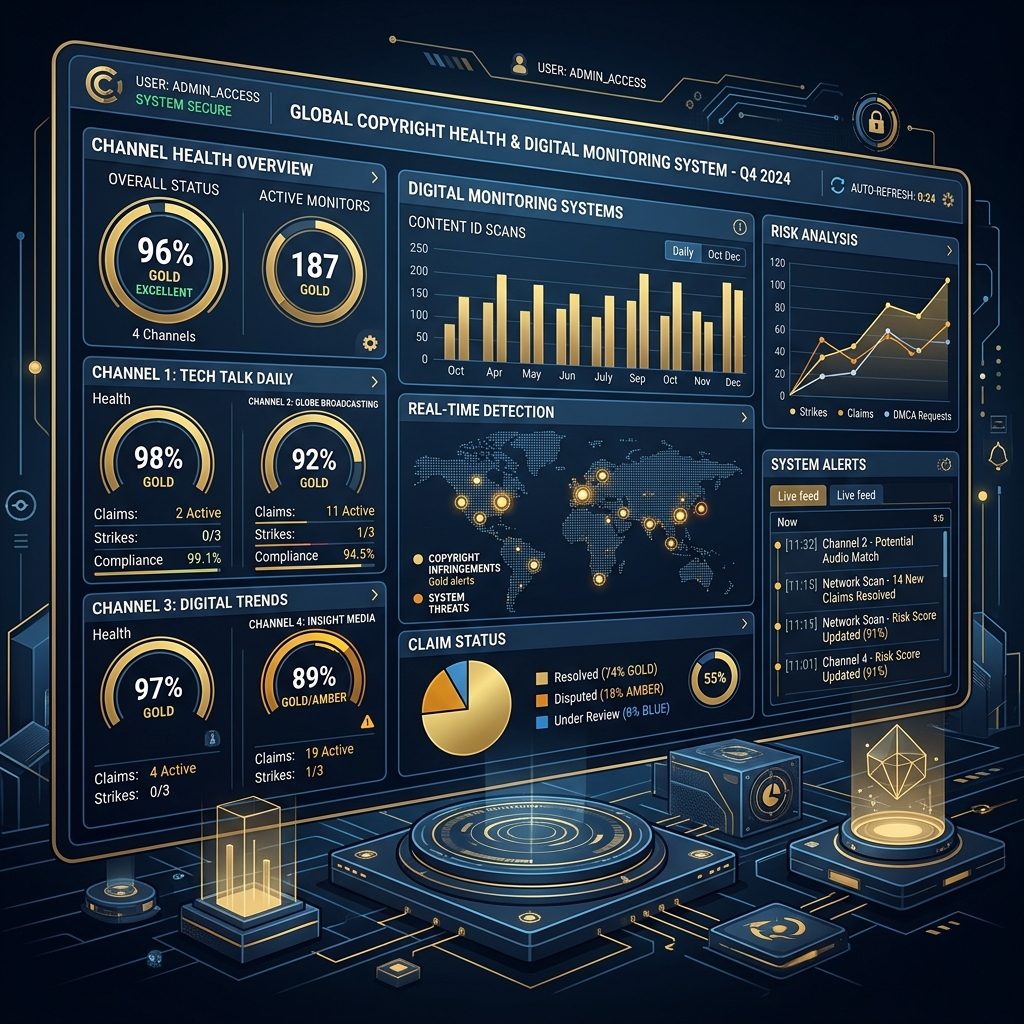
On the main Dashboard tab, look at the top sections. If you have any active Copyright Strikes or Community Guidelines strikes, YouTube prominently displays a “Channel Violations” card right at the top. If you don’t see this card, you do not have any active formal strikes.
Step 3: Checking Individual Video Claims
While strikes appear on the main dashboard, automated Content ID claims do not. To check for claims:
- In the left-hand menu of YouTube Studio, click on Content (or Videos).
- You will see a list of all your uploaded videos. Look at the column labeled Restrictions.
- If a video is clear, it will simply say “None.”
- If a video has a claim, the restriction will say “Copyright” or “Copyright claim.”
Step 4: Investigating the Details
To see the specifics of a claim:
- Hover your mouse over the word “Copyright” in the Restrictions column.
- A pop-up box will appear. Click on “SEE DETAILS.”
- This opens the Copyright Summary and Status window. Here, you will see exactly what content was claimed (audio or visual), timestamp segments of the matched material, who claimed it, and the impact it has on your channel (e.g., “Video cannot be monetized” or “Blocked in some territories”).
From this detail page, you can choose actions like mute the audio, trim the segment, or file a formal dispute.
Implementing Routine Checks
You should make checking the “Content” tab a part of your weekly digital marketing routine. Whenever you upload a new video, wait 15-30 minutes and check the Restrictions column to ensure the automated Content ID scanner hasn’t unexpectedly flagged your video before you push marketing traffic to it.
How TrustNet Security Helps
For large brands natively managing massive libraries of video content or dealing with sophisticated imposter accounts, manually checking YouTube Studio is highly inefficient. Corporate digital risk requires automation. This is where TrustNet Security steps in.
- Continuous Automated Monitoring: TrustNet Security provides enterprise-level threat intelligence that continuously monitors your entire digital footprint, including video platforms. We alert you immediately to unauthorized third-party uploads of your content, bypassing the need for manual checking.
- Comprehensive Threat Assessment: We don’t just watch your channel; we watch the ecosystem. If bad actors are scraping your YouTube channel and uploading your videos elsewhere to dilute your brand or steal your traffic, our active scanning systems detect and report them.
- Streamlined Remediation: When unauthorized parodies, pirated webinars, or brand-damaging deepfakes appear, TrustNet manages the complex DMCA takedown process on your behalf, ensuring your brand environment remains clean and secure.
Conclusion
Checking your YouTube channel’s copyright status is a straightforward but critical task for ensuring the longevity and profitability of your account. By making dashboard reviews a regular habit and integrating professional oversight from digital risk experts like TrustNet Security, you can transition from a reactive posture to a proactive defense, ensuring your digital assets remain secure and completely under your control.
